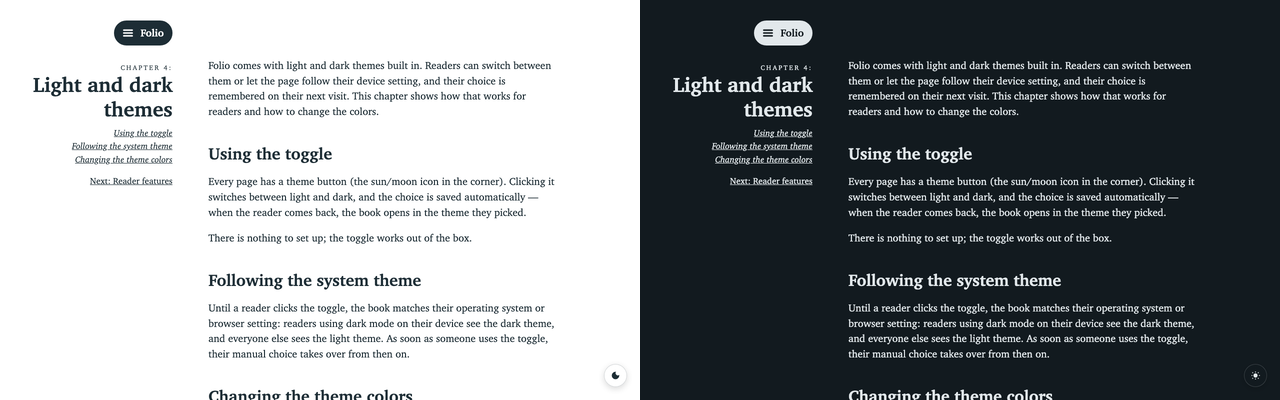
Folio comes with light and dark themes built in. Readers can switch between them or let the page follow their device setting, and their choice is remembered on their next visit. This chapter shows how that works for readers and how to change the colors.
Using the toggle
Every page has a theme button (the sun/moon icon in the corner). Clicking it switches between light and dark, and the choice is saved automatically — when the reader comes back, the book opens in the theme they picked.
There is nothing to set up; the toggle works out of the box.
Following the system theme
Until a reader clicks the toggle, the book matches their operating system or browser setting: readers using dark mode on their device see the dark theme, and everyone else sees the light theme. As soon as someone uses the toggle, their manual choice takes over from then on.
Changing the theme colors
The light colors come from assets/css/variables.css (covered in the previous
chapter). The dark colors live in assets/css/theme.css. To restyle dark mode,
edit the R, G, B values there:
:root[data-theme="dark"] {
  --color-text: 226, 232, 235;
  --color-background: 18, 26, 31;
  --color-link: 226, 232, 235;
}
Two tips:
- Use bare
R, G, Bnumbers, just like the light colors — no#, norgb(). theme.csslists the dark values twice: once for readers who chose dark with the toggle, and once for readers whose device is set to dark. Update both blocks with the same colors so the two ways of getting dark mode look identical.
Color themes
On top of light and dark, Folio ships a few color themes that tint the whole
page — background, text, links, and code — with a different hue. Pick one in
_config.yml:
color_theme: "blue"
The available options are default, blue, green, sepia, violet, rose,
teal, and crimson. The
light/dark toggle keeps working on top of whichever color theme you choose, so
each theme has a matching light and dark variant.
Each theme is a small file in assets/css/themes/ (for example
assets/css/themes/blue.css) that overrides only a handful of color variables.
To tweak a theme, edit its R, G, B values; to add your own, copy one of the
files, rename it, and use that name in color_theme. The default theme uses
the base colors from variables.css and theme.css, so it needs no file of its
own.
A random theme on every visit
Set color_theme to random to let Folio pick a different color theme on every
page load:
color_theme: "random"
This is a nice way to show off the available themes — reload the page and the colors change. The choice is made in the browser as the page loads, so it stays fast and works on a static host like GitHub Pages.