Folio uses plain CSS with no framework and no build step, so customizing the look means editing a couple of small files and refreshing the page. This chapter covers the changes you are most likely to want.
Where the styles live
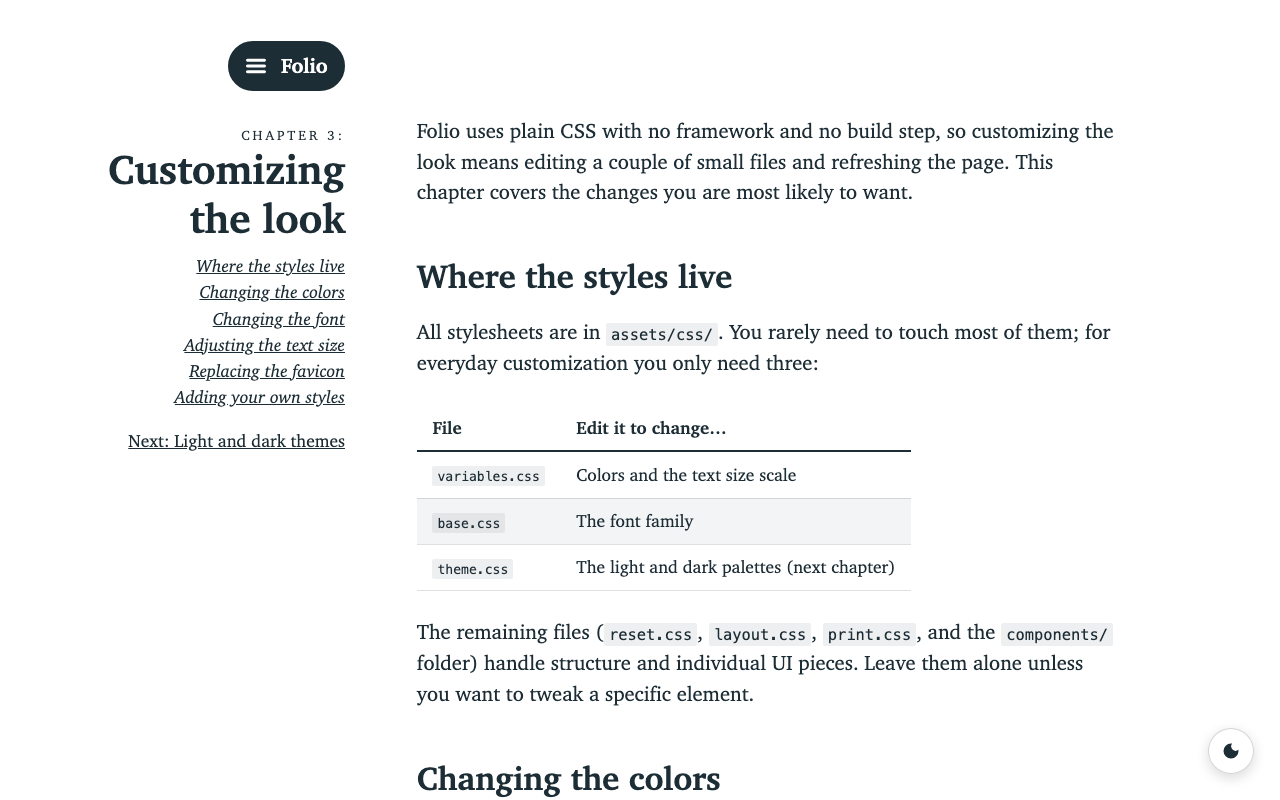
All stylesheets are in assets/css/. You rarely need to touch most of them; for
everyday customization you only need three:
| File | Edit it to change… |
|---|---|
variables.css |
Colors and the text size scale |
base.css |
The font family |
theme.css |
The light and dark palettes (next chapter) |
The remaining files (reset.css, layout.css, print.css, and the
components/ folder) handle structure and individual UI pieces. Leave them
alone unless you want to tweak a specific element.
Changing the colors
Open assets/css/variables.css and edit the color values at the top:
:root {
  --color-text: 29, 45, 53;
  --color-background: 255, 255, 255;
  --color-link: 29, 45, 53;
}
Colors are written as bare R, G, B numbers — no # and no rgb(). Just
replace the three numbers with your own. For example, to make links blue:
--color-link: 37, 99, 235;
Every part of the page reads these values, so one edit recolors the whole book.
(These are the light-mode colors; the dark palette lives in theme.css, covered
in the next chapter.)
Changing the font
By default the book uses a serif font already installed on the reader’s device,
so it loads instantly and needs no external account or request. The font is set
in one place — the font-family line in assets/css/base.css:
font-family: Charter, "Bitstream Charter", "Sitka Text", Cambria, Georgia, "Times New Roman", serif;
The browser uses the first font in the list it finds installed and falls back to the next. To pick a different system font, just edit this list.
To use a custom web font instead:
- Load your font in
_includes/head.html— either a provider<link>(for example Google Fonts) or an@font-facerule. - Add your font’s name to the front of the
font-familyline inassets/css/base.css, keeping the others as fallbacks.
Adjusting the text size
The body text size is controlled by --type-base in variables.css:
--type-base: calc(1.6em + 0.5vw);
The text scales automatically between phones and large screens. To make
everything a little bigger or smaller, raise or lower the first number (1.6em).
Replacing the favicon
The favicon is the small icon shown in the browser tab and bookmarks. Folio
ships with a simple “folio” mark (a page with a folded corner) made up of a few
files in assets/:
| File | Purpose |
|---|---|
favicon.svg |
Main icon — scales sharply at any size |
favicon-32.png |
PNG fallback for browsers without SVG support |
favicon.ico |
Multi-size icon (16/32/48) for older browsers |
apple-touch-icon.png |
180×180 icon used when added to an iOS home screen |
They are wired up once in _includes/head.html, so every page picks them up
automatically:
<link rel="icon" type="image/svg+xml" href="/folio/assets/favicon.svg">
<link rel="icon" type="image/png" sizes="32x32" href="/folio/assets/favicon-32.png">
<link rel="icon" href="/folio/assets/favicon.ico" sizes="any">
<link rel="apple-touch-icon" href="/folio/assets/apple-touch-icon.png">
To use your own icon, replace those files in assets/ keeping the same
names — no further changes are needed. The quickest path is to design a single
square SVG and export the other sizes from it. The bundled favicon.svg is a
good starting point: it’s plain markup you can edit by hand, and it adapts to
dark mode through a prefers-color-scheme rule in its <style> block:
@media (prefers-color-scheme: dark) {
  .page, .line { stroke: #e2e8eb; }
}
If you only want a quick change, you can drop in a single SVG (or even just a
favicon.ico) and remove the <link> lines for the formats you don’t provide.
Because the links use
relative_url, the favicon resolves correctly under a projectbaseurl(such as/folioon GitHub Pages). Keep that filter if you add more icon sizes.
Adding your own styles
If you want extra custom CSS, the simplest approach is to add your rules to an
existing file like base.css. When writing new rules, use the color and size
values instead of hard-coded numbers so they stay consistent with the rest of
the book and adapt to dark mode automatically:
color: rgb(var(--color-text));
font-size: var(--type-base);